

Your photo frame inside the openHAB app: Android, iOS or browser, no kiosk app needed.
Stay in your app. Pictures from a folder run as a full-screen slideshow right where you use openHAB. A tap brings you to the openHAB page you chose, and after a set time without touch the slideshow returns by itself. Everything runs inside the binding: no scripts, no ImageMagick, no cron jobs, nothing extra to install on the server.
Coming soon: Nextcloud, Dropbox login and Google Drive support.
**Status: Beta, tested on openHAB 5.2.1. Testers are welcome. Support: please reply in this thread or open a GitHub issue.
Features (v0.0.17)
- Works in the openHAB apps on Android and iOS and in any browser, no kiosk app needed
- One folder = one photo frame — the binding creates the folder, you put pictures in, new pictures appear by themselves
- Pictures from a local folder or a shared Dropbox folder
- Tap opens the page you choose — pick a Main UI page or sitemap from a list, no address needed; it opens on top of the slideshow
- Automatic return — after a set time without touch the slideshow is back
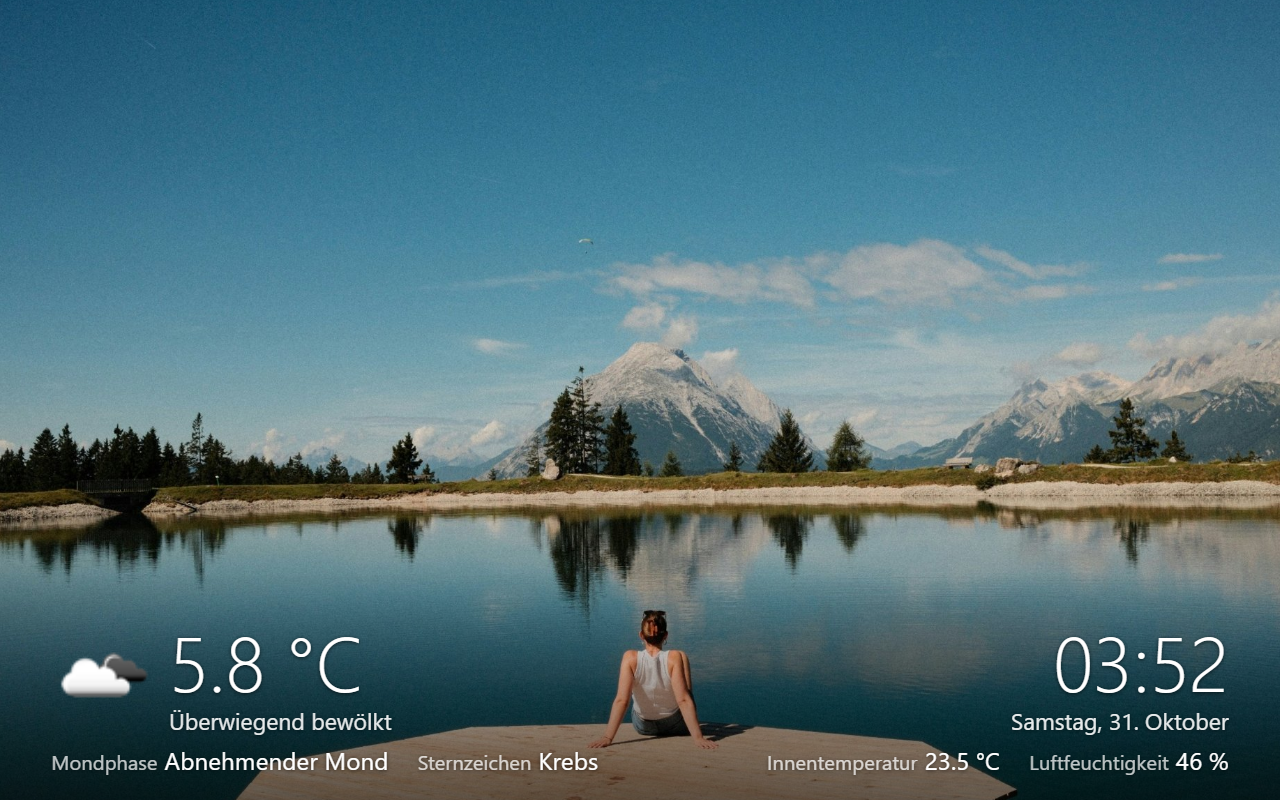
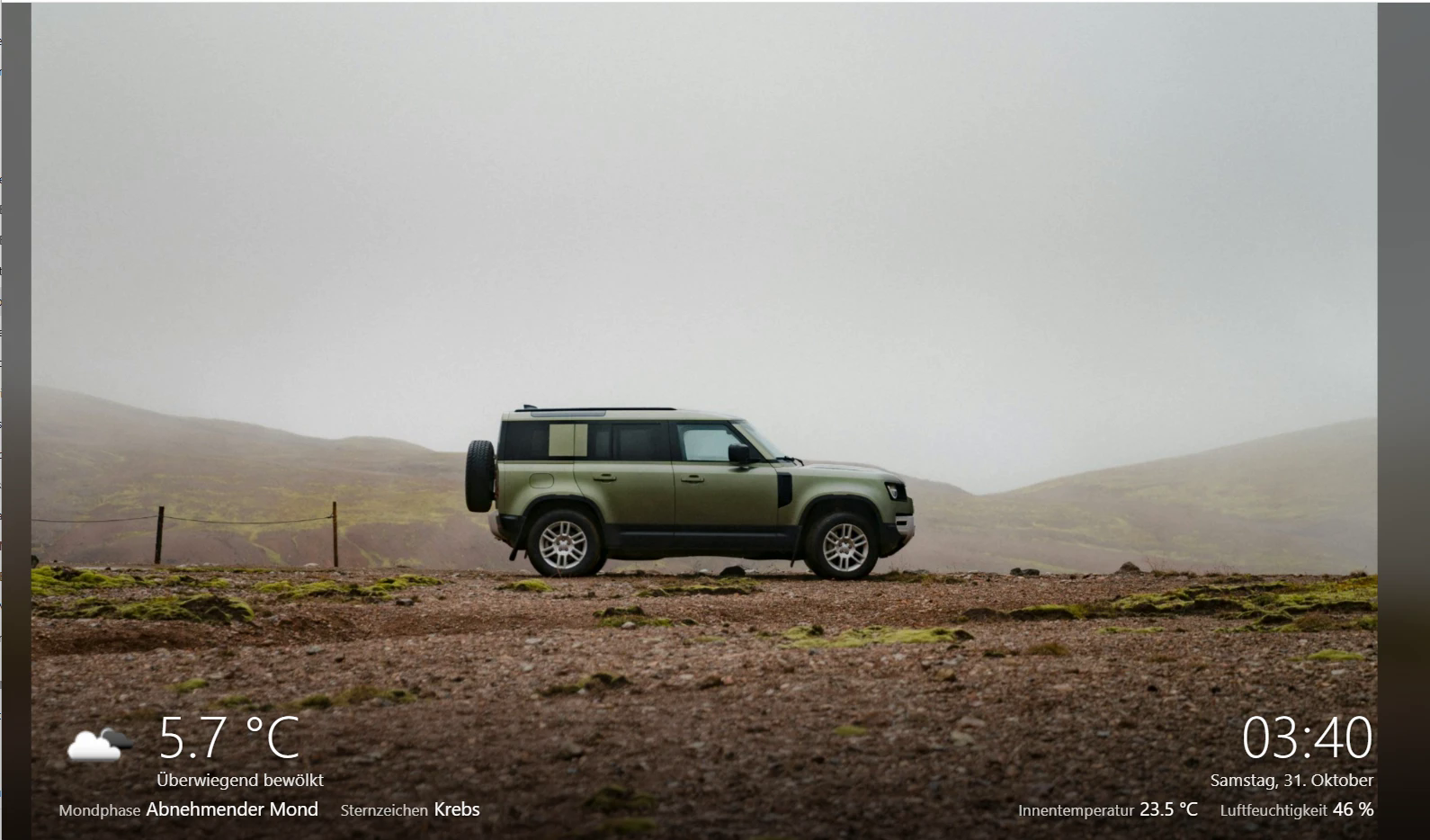
- Weather at the bottom left — icon, temperature and condition from your own weather items, with more items below
- Clock, date and item values at the bottom right, caption from the file name
- Transitions — fade, slide, wipe, zoom, random; Ken Burns effect
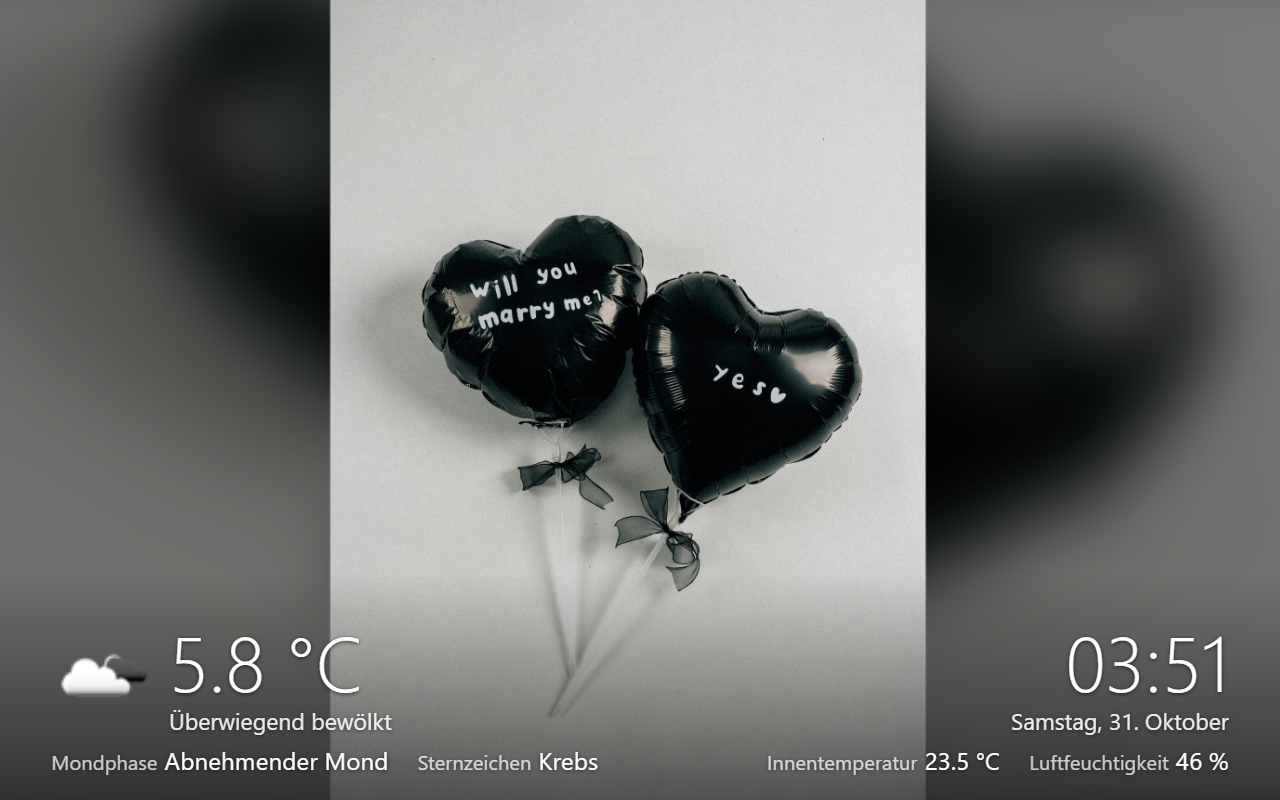
- Blurred background for pictures that do not fit the screen format, correct orientation (EXIF)
- Night mode — black screen, dimmed pictures, or black with a dimmed clock
- All screens show the same picture — play, pause, next and previous from openHAB
- Dashboard widget with live preview




Requirements
| Requirement | Notes |
|---|---|
| openHAB 5.0 or newer | does not start on 4.x |
| Java 21+ | bundled with openHAB 5.x |
| A device with a browser or the openHAB app | a kiosk app is optional |
No rules, no scripts and no extra software on the server are needed.
Installation
1. Install the binding
Install it from the Add-on Store (Community Marketplace), or manually:
Download org.openhab.binding.photoframe-0.0.17.jar and copy it to your openHAB addons/ folder. Remove older versions of the JAR first.
openHAB loads the bundle automatically — no restart needed. Check Settings → Bindings to confirm it appears.
2. Add your pictures
Add a Photoframe thing (see Configuration below). The binding creates the folder userdata/photoframe (Docker: /openhab/userdata/photoframe). Copy JPEG, PNG, GIF or BMP files into it. Your originals are never changed.
Dropbox: share the folder in Dropbox, Copy link, select the source Dropbox shared folder link and paste the link into Shared Link. No login is needed. Anyone who knows a shared link can see the pictures.
3. Install the widget
- Open Developer Tools → Widgets in the MainUI
- Click + and paste the content of photoframe_card.yaml
- Save
4. Create the full-screen page
This is what runs the slideshow inside the openHAB app, without a title bar.
- Go to Settings → Pages → + → Create Layout Page and save the empty page
- Open the Code tab and replace the content with this YAML. Copy
<id>and<token>from your slideshow address (channelpageUrl) - Set this page as start page of the device, in Main UI or in the openHAB app
component: oh-layout-page
config:
  label: Photoframe
  sidebar: true
  icon: screen
  layoutType: fixed
  fixedType: grid
  hideNavbar: true
  hideSidebarIcon: true
  colNum: 1
  margin: 0
slots:
  grid:
    - component: oh-grid-item
      config:
        x: 0
        y: 0
        w: 1
        h: 1
      slots:
        default:
          - component: iframe
            config:
              src: /photoframe/<id>/?token=<token>
              style:
                position: fixed
                top: "0"
                left: "0"
                width: 100vw
                height: 100vh
                border: "0"
                zIndex: "5000"
                background: "#000"
Configuration
Thing
Add a Thing in Settings → Things → + → Photoframe Binding → Photoframe, or create conf/things/photoframe.things:
Thing photoframe:frame:living "Photoframe Living Room" [
    sourceType             = "LOCAL",
    interval               = 30,
    transition             = "FADE",
    kenBurns               = true,
    fitMode                = "BLUR",
    clock                  = "TIME_DATE",
    weatherIconItem        = "Weather_Icon",
    weatherTemperatureItem = "Outdoor_Temperature",
    weatherTextItem        = "Weather_Condition",
    tapPage                = "/overview/",
    nightMode              = "CLOCK",
    nightStart             = "22:30",
    nightEnd               = "06:30"
]
| Parameter | Required | Description |
|---|---|---|
sourceType |
 |
LOCAL (local folder) or DROPBOX_LINK (shared Dropbox folder link) |
localFolder |
optional | Folder with the pictures, empty means userdata/photoframe |
link |
optional | Shared folder link from Dropbox |
interval |
optional | Seconds each picture is shown (5 to 3600), default 30 |
order |
optional | RANDOM or NAME |
transition |
optional | FADE, SLIDE, WIPE, ZOOM, RANDOM or NONE |
transitionSeconds |
optional | Duration of the transition (0.5 to 5), default 1.5 |
kenBurns |
optional | Slowly zoom and pan while a picture is shown |
fitMode |
optional | BLUR, FIT, FILL or AUTO |
tapPage |
optional | Main UI page or sitemap opened by a tap, chosen from a list |
clock |
optional | NONE, TIME or TIME_DATE |
overlayItems |
optional | Up to 4 items shown below the clock; image items are shown as picture |
weatherIconItem |
optional | Image item with the weather icon |
weatherTemperatureItem |
optional | Item with the temperature, shown large at the bottom left |
weatherTextItem |
optional | Item with the weather as text |
weatherItems |
optional | Up to 4 items shown below the weather, e.g. the moon phase |
caption |
optional | NONE or FILENAME |
nightMode |
optional | OFF, BLACK, DIM or CLOCK |
nightStart, nightEnd |
optional | Times in HH:mm, defaults 22:00 and 06:30 |
refreshMinutes |
advanced | Minutes between reading the folder, 0 uses the default (local 5, Dropbox 60) |
maxSize |
advanced | Longest side of the pictures sent to the screen (640 to 4096), default 1920 |
tapUrl |
advanced | Any address opened by a tap, also app addresses such as openhab://; tapPage takes priority |
returnSeconds |
advanced | Seconds without touch until the slideshow returns, 0 keeps the page open, default 120 |
baseUrl |
advanced | Address of openHAB as seen from the screens, empty detects it |
cacheSizeMb |
advanced | Size of the picture cache, default 500 |
If the slideshow address shows a wrong IP (openHAB in Docker):
Set baseUrl, e.g. http://192.168.1.10:8080, or set the primary address in Settings → Network.
Tap and return
A tap opens the page from tapPage in full screen on top of the slideshow. The ✕ at the bottom left returns at once and disappears after 6 seconds, so it does not cover openHAB. Without touch the slideshow comes back after returnSeconds.
&tap= and &return= in an address override the thing for one screen. If a screen should use tapPage, there must be no &tap= in its address.
Items
Create conf/items/photoframe.items (or add the items via the UI: Thing → Channels → Add Equipment to Model):
Player   Photoframe_Control  "Photoframe"              { channel="photoframe:frame:living:control" }
String   Photoframe_Picture  "Current picture [%s]"    { channel="photoframe:frame:living:currentImage" }
Number   Photoframe_Count    "Pictures [%d]"           { channel="photoframe:frame:living:imageCount" }
String   Photoframe_Url      "Slideshow address [%s]"  { channel="photoframe:frame:living:pageUrl" }
Switch   Photoframe_Night    "Night mode"              { channel="photoframe:frame:living:night" }
Switch   Photoframe_Refresh  "Read folder now"         { channel="photoframe:frame:living:refresh" }
DateTime Photoframe_Updated  "Read [%1$tF %1$tR]"      { channel="photoframe:frame:living:lastRefresh" }
Widget setup
Add the photoframe_card widget to a page (Edit page → add block / row / column → Add widget, under “Personal widgets”) and set the properties:
| Property | Required | Item (example) |
|---|---|---|
urlItem |
|
Photoframe_Url |
controlItem |
|
Photoframe_Control |
countItem |
|
Photoframe_Count |
currentImageItem |
|
Photoframe_Picture |
nightItem |
Photoframe_Night (shows a switch for the night mode) |
|
title |
Title of the card, default Photoframe |
|
lang |
en or de |
|
previewHeight |
Height of the live preview in pixels, 0 hides it, default 220 |
Usage: the card shows a live preview, the current picture, the number of pictures and the night mode, with buttons for previous, play/pause, next and full screen.
Channel reference
| Channel | Type | R/W | Description |
|---|---|---|---|
control |
Player | RW | Play, pause, next and previous picture |
currentImage |
String | R | File name of the picture currently shown |
imageCount |
Number | R | Number of pictures in the folder |
pageUrl |
String | R | Address of the slideshow page |
night |
Switch | RW | Night mode active; a command forces it until the next start or end time |
lastRefresh |
DateTime | R | Time the folder was read successfully |
refresh |
Switch | W | ON reads the folder again now |
Rule actions: next(), previous(), pause(), play(), refresh(), newToken().
Upgrading
- Remove the old JAR and copy in the new one. Things and items are kept
- Reload the slideshow on every screen. On an iPad, close the web app once and open it again
- To use
tapPageon an existing full-screen page, remove&tap=%2Ffrom its address
Known limitations
- Main UI and the apps cannot detect idle time, so a page cannot start the slideshow by itself; make the full-screen page the start page of the device instead
- Sitemaps are not shown full screen in the apps; use the full-screen page in Main UI
- The full-screen page uses a plain HTML element that is not an official Main UI component, so it may need a change after an openHAB update
- With a pinned Main UI sidebar on a large screen, the sidebar stays above the left part of the picture
- The screensaver of the openHAB Android app shows only item text, so it cannot show the slideshow
- Subfolders are not read; HEIC and WebP pictures are not supported
- A shared Dropbox folder can be up to 2 GB
- The slideshow is protected by a token in its address, because kiosk apps cannot log in. Anyone who knows the complete address can see the pictures. Do not make it reachable from the internet without further protection
Changelog
Version 0.0.17
- fixed: the control channel shows the real state after a restart
Version 0.0.16
- added: items below the weather block
Version 0.0.15
- added: weather block at the bottom left with icon, temperature and condition
- fixed: image items in the overlays are shown as picture
Version 0.0.14
- fixed: overlay items show the text of their state instead of the raw value
Version 0.0.13
- added: choose the Main UI page or sitemap opened by a tap from a list
Version 0.0.11
- changed: the close button disappears after 6 seconds
- fixed: previous picture at the start of a new round
Version 0.0.9
- added: dashboard widget and complete guides
- fixed: wrong Docker address in 192.168.x.x networks
Resources
Releases: Releases · pierrecinema/openhab-binding-photoframe · GitHub
License: EPL-2.0