

Search SoundCloud, show cover art and stream to any Chromecast — controlled from a single MainUI widget. Pause / play / stop, volume and mute are handled by the binding itself, no rules needed.
Status: Beta — in daily use for several months. Support: Openhab SoundCloud Binding (NEW)
Features (v1.6.1)
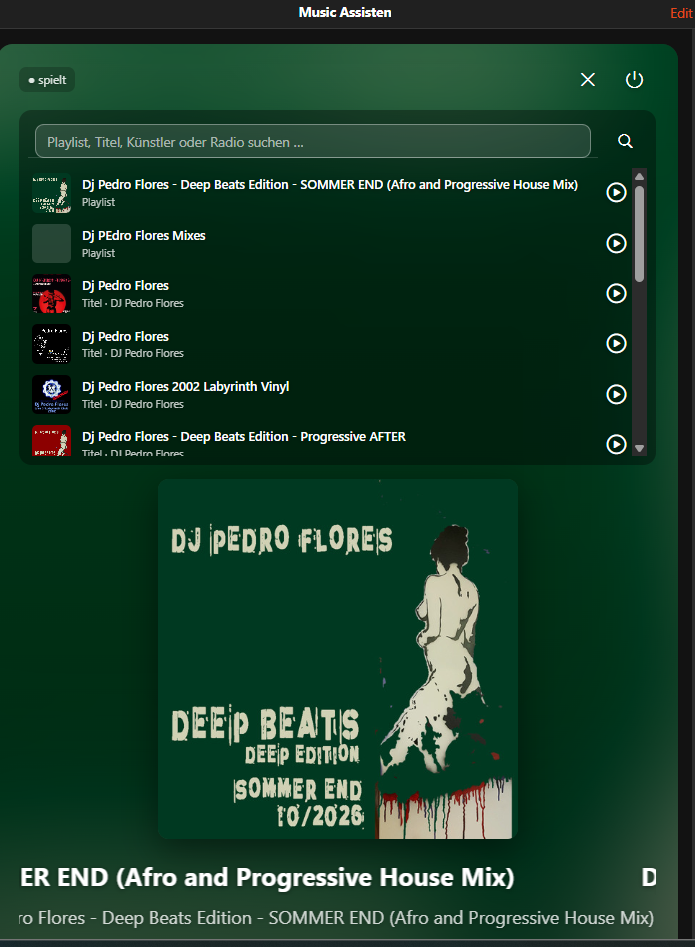
- Search tracks by keyword — results appear instantly in the widget
- Cover art at 500 × 500 px with title, artist and duration
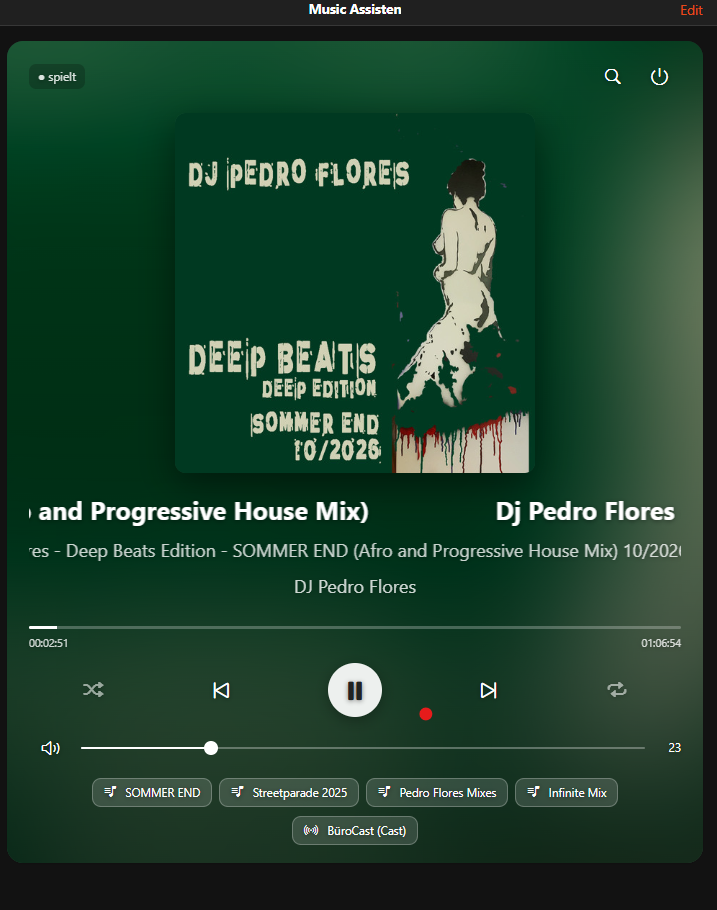
- Chromecast playback built into the binding — select a Chromecast, tap a track; every newly loaded track starts automatically
- Pause / Play / Stop, volume and mute — the binding controls the selected Chromecast directly, no rules or proxy items needed
- Volume and mute mirrored back — changes made on the Chromecast (e.g. in the Google Home app) show up in openHAB within ~2 s
- Reliable start — if the Chromecast first has to launch its cast app, the stream is resent automatically after 5 s
- Stop keeps the track — Play after Stop restarts the same track
- Seek / progress bar — elapsed / total time, seek within the track
- Playlist queue with Next / Previous, auto-advance, repeat (OFF / TRACK / PLAYLIST) and shuffle, track counter (e.g. 3 / 12)
- OAuth 2.0 — authorise once in the browser, tokens are stored and refreshed automatically
- Now-playing widget — the background follows the cover colours, long titles scroll, search panel, Chromecast chips
Requirements
| Requirement | Notes |
|---|---|
| openHAB 5.1.3 or newer | older versions are not supported |
| Java 21+ | bundled with openHAB 5.x |
| Your own SoundCloud app | free — see step 1 below |
| openHAB Chromecast Binding | required for playback |
No rules and no JavaScript Scripting add-on are needed.
Installation
1. Register your SoundCloud app
Every user needs their own app — the binding does not ship any credentials.
- Log in to SoundCloud and open https://soundcloud.com/you/apps/new
- Fill in the form:
- App name: e.g.
openHAB <your name> - Purpose / description:
Smart home integration — personal use with openHAB (search SoundCloud and play tracks on my own Chromecast speakers) - Redirect URI:
http://<your-openhab-host>:8080/soundcloud/callback— address and port of your openHAB server
- App name: e.g.
- Save the app and copy the Client ID and Client Secret
2. Install the binding
Install it from the Add-on Store (Community Marketplace), or manually:
Download org.openhab.binding.soundcloud-1.6.1.jar and copy it to your openHAB addons/ folder. Remove older versions of the JAR first.
openHAB loads the bundle automatically — no restart needed. Check Settings → Bindings to confirm it appears.
After replacing an older JAR a thing may stay
UNINITIALIZED. Disable and re-enable it once (Settings → Things → the thing → ⋮).
3. Install the widget
Easiest: install **SoundCloud Now Playing** from the Add-on Store (Marketplace → UI Widgets): SoundCloud Now Playing widget — or manually:
- Open Developer Tools → Widgets in the MainUI
- Click + and paste the content of soundcloud_nowplaying.yaml
- Save
Configuration
Thing
Add a Thing in Settings → Things → + → SoundCloud Binding → SoundCloud Account, or create conf/things/soundcloud.things:
Thing soundcloud:account:myaccount "SoundCloud" [
    clientId     = "YOUR_CLIENT_ID",
    clientSecret = "YOUR_CLIENT_SECRET",
    redirectUri  = "http://YOUR_OPENHAB_HOST:8080/soundcloud/callback"
]
| Parameter | Required | Description |
|---|---|---|
clientId |
 |
Client ID of your SoundCloud app |
clientSecret |
|
Client Secret of your SoundCloud app |
redirectUri |
|
Must match exactly what is registered in your SoundCloud app |
webClientId |
optional | Web client ID used for the search (a default is included — see below if the search stops working) |
playUriItem |
advanced | Leave empty (only for old setups with a router rule) |
If the search stops working (SoundCloud occasionally rotates the web client ID):
- Open soundcloud.com in a desktop browser and press F12
- Go to the Network tab and type
client_idinto the filter box - Reload the page (F5) and play any track if nothing appears
- Click a request to
api-v2.soundcloud.com/...and copy the 32-character value ofclient_id=intowebClientId
OAuth authorisation
After the Thing is created it goes OFFLINE and prints an authorisation URL in the log. Open the URL in a browser, log in to SoundCloud and allow access. The binding stores the tokens and the Thing goes ONLINE. Tokens are refreshed in the background — you only need to authorise once.
Items
Create conf/items/soundcloud.items (or add the items via the UI: Thing → Channels → Add Link to Item):
// Player
String   SC_TrackID       "Track ID"          { channel="soundcloud:account:myaccount:player#track-id" }
String   SC_Title         "Title [%s]"        { channel="soundcloud:account:myaccount:player#title" }
String   SC_Artist        "Artist [%s]"       { channel="soundcloud:account:myaccount:player#artist" }
String   SC_ArtworkURL    "Cover [%s]"        { channel="soundcloud:account:myaccount:player#artwork-url" }
Number   SC_Duration      "Duration [%.0f s]" { channel="soundcloud:account:myaccount:player#duration" }
Number   SC_Elapsed       "Elapsed [%.0f s]"  { channel="soundcloud:account:myaccount:player#elapsed-time" }
String   SC_StreamURL     "Stream URL [%s]"   { channel="soundcloud:account:myaccount:player#stream-url" }
String   SC_State         "Status [%s]"       { channel="soundcloud:account:myaccount:player#playback-state" }
String   SC_CCTarget      "Chromecast [%s]"   { channel="soundcloud:account:myaccount:player#chromecast-target" }
Dimmer   SC_Volume        "Volume [%d %%]"    { channel="soundcloud:account:myaccount:player#volume" }
Switch   SC_Mute          "Mute"              { channel="soundcloud:account:myaccount:player#mute" }
Number   SC_QueueIndex    "Track [%d]"        { channel="soundcloud:account:myaccount:player#queue-index" }
Number   SC_QueueSize     "Tracks [%d]"       { channel="soundcloud:account:myaccount:player#queue-size" }
String   SC_Repeat        "Repeat [%s]"       { channel="soundcloud:account:myaccount:player#repeat" }
Switch   SC_Shuffle       "Shuffle"           { channel="soundcloud:account:myaccount:player#shuffle" }

// Search
String   SC_Query         "Search [%s]"       { channel="soundcloud:account:myaccount:search#query" }
String   SC_Results       "Results [%s]"      { channel="soundcloud:account:myaccount:search#results" }
Chromecasts
The binding plays on your Chromecasts through the items of the Chromecast binding. For every Chromecast (or Chromecast audio group) you want to use:
- Link its
playuri,control,stop,volumeandmutechannels to items - Tag the playuri item with
Chromecast— it then appears as a chip in the widget
String Livingroom_PlayURI "Living room" [ "Chromecast" ] { channel="chromecast:chromecast:abc123:playuri" }
Player Livingroom_Control "Living room Control"          { channel="chromecast:chromecast:abc123:control" }
Switch Livingroom_Stop    "Living room Stop"             { channel="chromecast:chromecast:abc123:stop" }
Dimmer Livingroom_Volume  "Living room Volume"           { channel="chromecast:chromecast:abc123:volume" }
Switch Livingroom_Mute    "Living room Mute"             { channel="chromecast:chromecast:abc123:mute" }
Selecting a chip writes the name of the playuri item to player#chromecast-target. The binding finds the other items of that Chromecast through the channel links — nothing else to configure.
Widget setup
Add the soundcloud_nowplaying widget to a page (Edit page → add block / row / column → Add widget) and set the properties:
| Property | Required | Item (example) |
|---|---|---|
titleItem |
|
SC_Title |
stateItem |
|
SC_State |
trackIdItem |
|
SC_TrackID |
queryItem |
|
SC_Query |
resultsItem |
|
SC_Results |
targetItem |
|
SC_CCTarget |
volumeItem, muteItem |
SC_Volume, SC_Mute |
|
artistItem, artworkItem, streamUrlItem |
SC_Artist, SC_ArtworkURL, SC_StreamURL |
|
elapsedItem, durationItem |
SC_Elapsed, SC_Duration (progress bar) |
|
queueIndexItem, queueSizeItem |
SC_QueueIndex, SC_QueueSize (“3 / 12”) |
|
shuffleItem, repeatItem |
SC_Shuffle, SC_Repeat |
|
seekPctItem |
optional: Number item 0–100 to seek with the progress bar (needs the small seek rule) | |
chromecastTag |
Tag of your playuri items (default Chromecast) |
Usage: tap the magnifier → type a search term → Enter → tap a result (it starts playing on the selected Chromecast). Tap the Chromecast chip at the bottom to choose another device.
Channel reference
| Channel | Type | R/W | Description |
|---|---|---|---|
player#track-id |
String | RW | Write a track ID to load and play it |
player#playlist-id |
String | W | Write a playlist ID to load it into the queue |
player#title |
String | R | Current track title |
player#artist |
String | R | Current track artist / uploader |
player#artwork-url |
String | R | 500×500 px cover art URL |
player#duration |
Number | R | Track duration in seconds |
player#elapsed-time |
Number | RW | Elapsed time in seconds (updates every second); write seconds to seek |
player#stream-url |
String | R | Current stream URL |
player#playback-state |
String | RW | PLAYING / PAUSED / STOPPED; accepts PLAY, PAUSE, STOP, NEXT, PREVIOUS |
player#chromecast-target |
String | RW | Name of the selected Chromecast playuri item |
player#volume |
Dimmer | RW | Volume of the selected Chromecast |
player#mute |
Switch | RW | Mute of the selected Chromecast |
player#queue-index |
Number | R | Current track position in the queue (1-based) |
player#queue-size |
Number | R | Number of tracks in the queue |
player#repeat |
String | RW | OFF / TRACK / PLAYLIST |
player#shuffle |
Switch | RW | Shuffle playback order |
search#query |
String | W | Send a search term |
search#results |
String | R | JSON array [{id, title, artist, artwork, duration}, …] |
Upgrading from v1.5.x or older
- Remove the old JAR, copy in the new one (existing things get the new
volume/mutechannels automatically) - Link items to
player#volumeandplayer#mute, re-import the widget and setvolumeItem/muteItem - Clear the thing parameter
playUriItem(advanced settings) - Disable the old Chromecast router rule and auto-play rule — the proxy items
SC_CC_*are no longer used
Known limitations
- Stream URLs are time-limited by SoundCloud; reloading the track (or Play after Stop) creates a fresh one
- The playback state is the binding’s state — if another app takes over the Chromecast, it may still show PLAYING
- The search uses SoundCloud’s web API (api-v2); if SoundCloud rotates the web client ID, update
webClientId - Please respect SoundCloud’s terms of use — the binding is meant for personal, non-commercial home use
Changelog
Version 1.6.1
- added: Chromecast control inside the binding — new
volume/mutechannels mirrored from the device, pause / play / stop viaplayback-state - added: stream URL is resent after 5 s if the Chromecast first had to launch its cast app
- changed: no rules or proxy items needed any more; existing things are updated automatically
- removed: obsolete
my-playlistschannel
Version 1.5.7
- added: new tracks start on the selected Chromecast automatically
- added: now-playing widget
- fixed: seek with HLS streams (CORS headers on the seek proxy)
- changed: Stop keeps the track, Play restarts it
Version 1.5.0
- added: playlist queue, next / previous, auto-advance, repeat, shuffle
Version 1.4.10
- added: seek via progressive MP3
Resources
Releases: Releases · pierrecinema/openhab-soundcloud-binding · GitHub
License: MIT
 Looks good, both should be available soon.